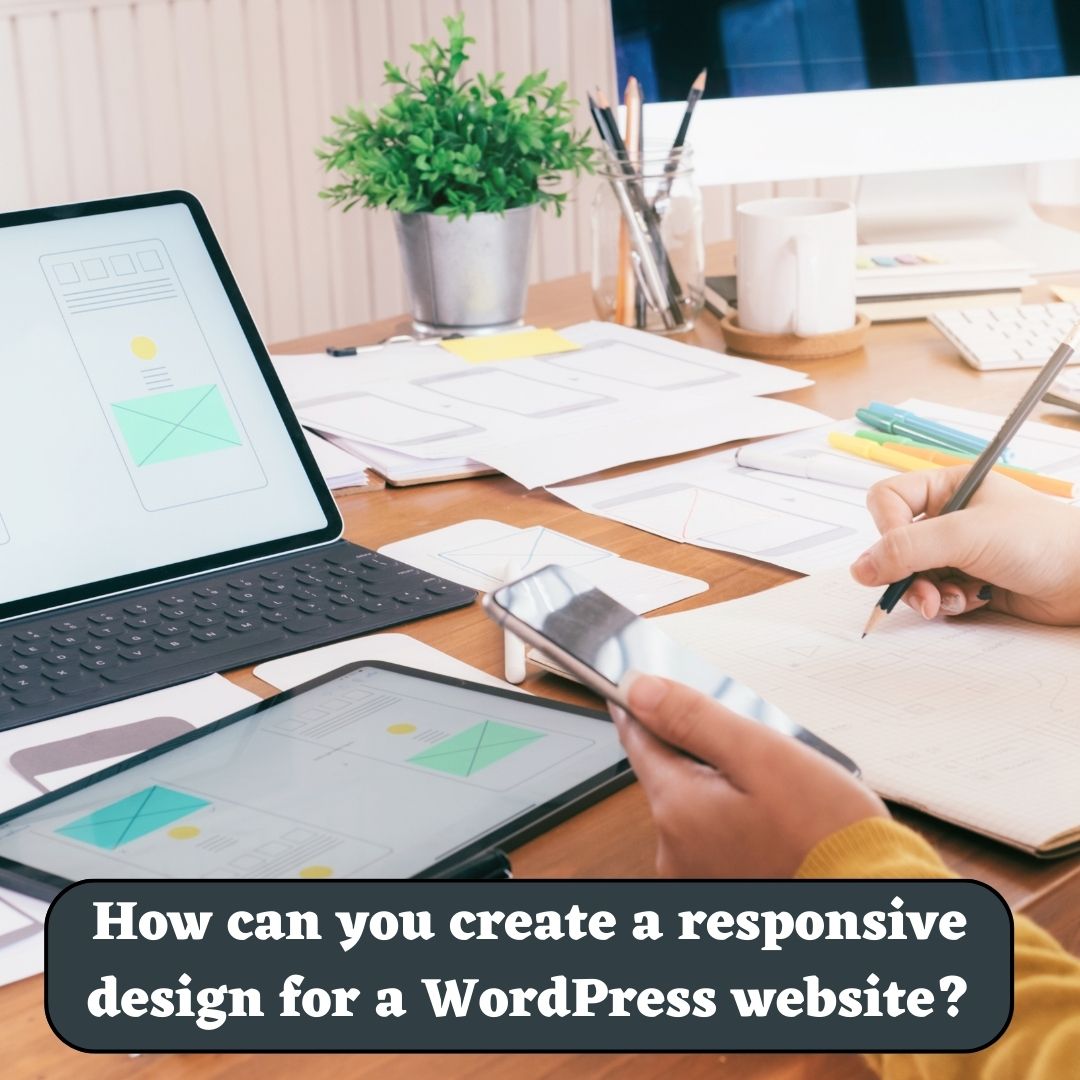
How can you create a responsive design for a WordPress website?

In this article we are going to talk about How can you create a responsive design for a WordPress Website? In today’s mobile-focused world, a responsive design for your WordPress website is crucial. Responsive design ensures that your website adapts seamlessly to various screen sizes and devices, providing an optimal user experience.

How can you create a responsive design for a WordPress website?

In this article, we will delve into the key aspects of creating a responsive design for your WordPress website. From selecting a responsive theme to implementing media queries, flexible grids, and optimizing images, we will cover everything you need to know to make your website look great on any device.

I. Choosing a Responsive Theme

The first step in creating a responsive design for your WordPress website is selecting a responsive theme. A responsive theme is designed to automatically adjust and adapt to different screen sizes, ensuring your website looks good on desktops, tablets, and smartphones. When browsing for themes, look for those labeled as “responsive” or “mobile-friendly.” Take into account factors such as design aesthetics, customization options, and plugin compatibility while choosing a responsive theme that aligns with your website’s goals.

II. Implementing Responsive Design Techniques

1. Fluid Grid System

A fluid grid system is the foundation of a responsive design. It enables your website’s layout to adjust proportionally to different screen sizes. Use CSS frameworks like Bootstrap or Foundation, which offer pre-built grid systems, to create a responsive layout for your WordPress theme. These frameworks provide a grid-based structure that automatically adjusts the placement and sizing of elements based on screen size. By utilizing a fluid grid system, you can ensure that your website’s layout maintains its integrity across various devices.

2. Media Queries

Media queries let you customize CSS styles based on the screen size of the device. By defining breakpoints and applying appropriate styles, you can ensure that your website’s layout, typography, and images adapt to different devices effectively. CSS3 provides excellent support for media queries, making it easy to implement responsive design techniques. Media queries allow you to specify rules for specific screen sizes, such as targeting smaller screens with simplified navigation or adjusting font sizes for better readability. By utilizing media queries effectively, you can create a truly responsive experience for your website visitors.

Read Also: How can you create a contact form on a WordPress website?

3. Flexible Images

Images are important in web design and should adjust to fit different screen sizes. Use CSS techniques such as max-width: 100% to ensure images scale proportionally within their container without overflowing or distorting the layout. Additionally, consider using responsive image solutions like the srcset and sizes attributes or plugins like “WP Responsive Images” to serve appropriately sized images to different devices, reducing load times and improving performance. Responsive images allow your website to deliver the right image size based on the user’s device, ensuring optimal visual experience without compromising performance.

How To Design A Website Using WordPress

4. Mobile-First Design Approach

To ensure a truly responsive design, adopting a mobile-first approach is recommended. This approach means starting with mobile design and gradually improving it for larger screens. By prioritizing mobile design, you can focus on essential content and optimize the user experience for smaller screens. This approach also encourages a streamlined design and faster load times, benefiting both mobile and desktop users.

Read Also: How to optimize the speed and performance of a WordPress website?

III. Testing and Optimization

Once you have implemented the responsive design techniques, thorough testing is crucial to ensure your website performs flawlessly on various devices. Test your website on different browsers, screen sizes, and devices to identify any issues and make necessary adjustments. Emulate different devices using browser developer tools or consider using real devices for testing.

Optimize your website’s performance by minifying CSS and JavaScript files, compressing images, and leveraging caching techniques. Tools like Google PageSpeed Insights can provide insights and recommendations for optimizing your website’s speed and performance. Additionally, prioritize accessibility by ensuring that your website is usable by individuals with disabilities and compliant with accessibility guidelines.

Create A Responsive Design For A WordPress Website

Conclusion

 Creating a responsive design for your WordPress website is essential to deliver a seamless user experience across devices. By selecting a responsive theme, implementing responsive design techniques such as fluid grids, media queries, flexible images, and adopting a mobile-first approach, and conducting thorough testing and optimization, you can ensure your website looks and functions beautifully on any screen size. Embracing responsive design will not only improve user engagement but also contribute to better search engine rankings and increased conversions. Start implementing these techniques today and unlock the full potential of your WordPress website in the mobile era. So, Now I hope you have understood about create a responsive design for a WordPress website.

You can also checkout this website designing institute to learn digital marketing course by enrolling in our course Or Contact Digital Bikana on +91-8949483728

How to optimize the speed and performance of a WordPress website?

In this article we are going to talk about How to optimize the speed and performance of a WordPress website? Website speed and performance are critical factors that greatly impact the success of a WordPress website in today’s fast-paced digital world. Users have increasingly high expectations for fast-loading sites, and search engines also prioritize websites with faster load times.

How to optimize the speed and performance of a WordPress website?

In this article, we will explore some of the best practices for optimizing the speed and performance of a WordPress website to ensure an exceptional user experience and improved search engine rankings.

1. Choose a Reliable Web Hosting Provider

One of the most critical decisions for your WordPress website is selecting a reliable web hosting provider. Opt for a hosting company that offers excellent server performance, high uptime, and fast response times. Shared hosting might be cost-effective, but it can often result in slower site speed due to resource sharing. Consider managed WordPress hosting or a virtual private server (VPS) for better performance.

2. Utilize a Lightweight and Fast Theme

The theme you choose significantly impacts the speed and performance of your WordPress website. Opt for a lightweight theme that is well-coded and optimized for speed. Avoid themes with excessive features and unnecessary plugins, as they can slow down your site. Conduct thorough research, read reviews, and select a reputable theme that suits your design needs while maintaining optimal performance.

Read Also: How to install theme in WordPress Website?

3. Keep your WordPress core, themes, and plugins up to date

Outdated WordPress core, themes, and plugins can pose security risks and negatively impact performance. Developers regularly release updates to address bugs, security vulnerabilities, and enhance performance. Keep your WordPress installation, themes, and plugins up to date to ensure optimal speed and performance. Regularly check for updates and promptly apply them when they are available.

Optimizing The Speed And Performance Of A WordPress Website

4. Optimize Images for Web

Images play a vital role in website engagement, but they can also be a significant factor in slowing down your WordPress site. Large, unoptimized images take longer to load, causing delays in the overall page speed. Before uploading images to your website, compress them using tools like TinyPNG, Imagify, or WP Smush. Additionally, use appropriate image formats (JPEG for photographs, PNG for graphics) and specify image dimensions to reduce page load time.

5. Minify and Combine CSS and JavaScript Files

CSS and JavaScript files are essential for the functionality and appearance of your website. However, multiple CSS and JavaScript files can increase the number of HTTP requests, impacting site speed. Reduce file size and requests to the server by minifying and combining CSS and JavaScript files. You can utilize plugins like Autoptimize or WP Rocket to easily achieve this optimization.

6. Utilize Caching

Caching is a powerful technique that saves dynamically generated HTML pages and serves them to visitors without the need for reprocessing. By caching your WordPress site, you reduce the server load and improve page load times. Use caching plugins like W3 Total Cache, WP Super Cache, or WP Rocket to implement browser caching, object caching, and page caching. This significantly improves overall site performance and response times.

Read Also: What are Permalinks in WordPress and How can you customize them?

7. Enable GZIP Compression

GZIP compression is a technique that reduces the size of your website files by compressing them before they are sent to the visitor’s browser. Enabling GZIP compression significantly reduces the file size and the time it takes to transfer data from the server to the user’s browser. Most modern web servers and caching plugins have built-in options to enable GZIP compression.

8. Implement Lazy Loading for Images and Videos

Lazy loading is a technique that defers the loading of non-visible images and videos until the user scrolls to them. By implementing lazy loading, you can improve the initial page load time by only loading the images and videos that the user needs to see. This technique can be implemented using plugins like Lazy Load by WP Rocket, or there are even themes that offer built-in lazy loading functionality.

9. Optimize Your Database

The WordPress database stores all your website’s content, including posts, pages, settings, and more. Over time, the database can gather unnecessary data like post revisions, spam comments, and transients, which can be safely removed. Optimize your database by removing these unnecessary elements using plugins like WP-Optimize or Advanced Database Cleaner. Regularly cleaning and optimizing your database helps improve site performance by reducing the size and query times.

Read Also: How can you create a contact form on a WordPress website?

10. Monitor and Optimize Website Performance

Continuously monitor your WordPress website’s performance using tools like Google PageSpeed Insights, GTmetrix, or Pingdom. These tools provide detailed reports and recommendations for improving your site’s speed and performance. Pay attention to metrics such as page load time, time to first byte (TTFB), and overall performance scores. Implement the recommended optimizations and monitor the impact they have on your site’s speed.

Best Practice For WordPress Website

Conclusion

Optimizing the speed and performance of a WordPress website is vital to deliver an exceptional user experience and improve search engine rankings. By following the best practices outlined in this article, such as choosing a reliable hosting provider, utilizing a lightweight theme, optimizing images, and implementing caching and compression techniques, you can significantly enhance your website’s speed and performance. Regularly monitoring and optimizing your site’s performance ensures that your WordPress website continues to meet the demands of today’s users and search engine requirements. So, Now I hope you have understood about How to optimize the speed and performance of a WordPress website.

You can also checkout this website designing institute to learn digital marketing course by enrolling in our course Or Contact Digital Bikana on +91-8949483728

What are Custom Fields in WordPress and how can you use them?

In this article we are going to talk about What are Custom Fields in WordPress and how can you use them? WordPress, being one of the most popular content management systems (CMS) worldwide, offers a wide range of features and customization options. One such powerful feature is custom fields, which allow users to add extra data to posts, pages, and other content types.

What are Custom Fields in WordPress and how can you use them?

In this article, we will explore what custom fields are in WordPress and how they can be effectively utilized to enhance your website’s functionality and content management capabilities.

What are Custom Fields?

Custom fields in WordPress are additional metadata fields that can be attached to various content elements. They provide a way to store and display extra information associated with posts, pages, and other custom post types. By default, WordPress comes with a few basic fields such as title, content, categories, and tags. However, custom fields enable you to extend these default fields and add your own unique data.

Using Custom Fields

Custom fields can be used in numerous ways to enhance the functionality and organization of your WordPress website. Here are some common ways custom fields can be used:

1. Storing Additional Information

Custom fields allow you to store and display supplementary data for your content. For example, if you have a website about movies, you could create custom fields to store details like release date, director, cast, and ratings. This extra information can then be used to build customized templates, filters, or search functionalities.

2. Creating Custom Templates

By utilizing custom fields, you can design unique templates for specific types of content. For instance, you might want to create a different layout for featured articles or display specific data in a particular format. Custom fields enable you to add the necessary metadata and build templates tailored to your requirements.

Read Also: Best practices for designing the header and footer of a WordPress website

3. Building Advanced Search and Filtering

Custom fields play a crucial role in creating advanced search and filtering options on your website. With the help of plugins or custom development, you can enable visitors to filter content based on specific criteria. For example, if you have an e-commerce site, custom fields can help users filter products by price range, color, size, or any other relevant attributes.

Add Custom Fields In WordPress

4. Integration with Plugins and Themes

WordPress provides a vast ecosystem of plugins and themes that can leverage custom fields to enhance functionality. Many plugins allow you to create custom fields effortlessly and use them in conjunction with their features. This integration opens up endless possibilities for extending your website’s capabilities without the need for extensive coding.

Read Also: What are widgets and how can you use them in WordPress website designing?

Implementing Custom Fields

WordPress provides different ways to create and manage custom fields:

1. Custom Fields UI

For beginners, the Custom Fields UI plugin offers a user-friendly interface to create and manage custom fields without any coding knowledge. It simplifies the process by providing an intuitive interface within the WordPress admin dashboard.

2. Advanced Custom Fields (ACF)

The Advanced Custom Fields plugin is a powerful tool for creating complex custom field sets. It offers a wide range of field types, including text, image, select, date, and more. ACF also provides seamless integration with themes and other plugins, making it a popular choice among developers.

3. Manual Coding

For advanced users and developers, custom fields can be created programmatically using functions provided by the WordPress API. This method offers maximum flexibility and control over the custom field implementation.

Custom fields can be implemented by adding a few lines of code to your theme’s template files or by using hooks and filters to modify existing templates. The WordPress API provides functions like get_post_meta() and update_post_meta() to retrieve and update the values of custom fields programmatically.

What Are Custom Fields In WordPress

Conclusion

Custom fields in WordPress are a valuable feature that empowers website owners to extend the default content structure and add unique metadata. They provide enhanced content management capabilities, enable customized templates, and facilitate advanced search and filtering options. By leveraging plugins like Custom Fields UI or Advanced Custom Fields, or through manual coding, you can harness the power of custom fields and unlock new possibilities for your WordPress website.

Experiment with custom fields to tailor your content and enhance your website’s functionality. Whether you’re creating a portfolio, an e-commerce site, or a blog, custom fields can significantly improve the way you manage and present your content. Embrace the flexibility and customization options provided by custom fields, and watch your WordPress website thrive with enhanced user experiences and improved content management. So, Now I hope you have understood about the Custom Fields in WordPress and how can we use them.

You can also checkout this website designing institute to learn digital marketing course by enrolling in our course Or Contact Digital Bikana on +91-8949483728

What are widgets and how can you use them in WordPress website designing?

In this article What are widgets and how can you use them in WordPress website designing? Widgets are powerful tools that allow you to add functionality and customize the layout of your WordPress website without any coding knowledge. They are modular components that can be easily added, rearranged, and configured within designated areas of your website, such as sidebars, footers, and widgetized areas.

What are widgets and how can you use them in WordPress website designing?

In this comprehensive guide, we will explore what widgets are and how you can effectively use them in WordPress website designing. From enhancing user experience to adding dynamic content, widgets provide endless possibilities for creating a visually appealing and functional website.

1. Understanding Widgets

Widgets are small, self-contained modules that perform specific functions and can be added to widgetized areas on your WordPress website. These areas are predefined by your theme and typically include sidebars, header, footer, and other designated widget areas. Widgets can display a wide range of content, such as text, images, menus, social media feeds, calendars, search bars, and more.

2. Accessing and Managing Widgets

To access and manage widgets in WordPress, navigate to the “Appearance” section in the WordPress dashboard and click on “Widgets.” Here, you will find a list of available widgets and the widget areas defined by your theme. You can simply drag and drop widgets into the desired widget areas or click on them to configure their settings.

3. Popular Widget Areas

 a. Sidebar Widgets

Sidebar widgets are commonly used to display additional content alongside the main content of your website. They can include categories, recent posts, popular posts, tags, search bars, and custom menus. Sidebar widgets offer an excellent opportunity to improve navigation and engage users with relevant information.

b. Footer Widgets

Footer widgets appear at the bottom of your website and can be used to display copyright information, contact details, quick links, social media icons, newsletter sign-up forms, or any other content you want to showcase in the footer area.

c. Header Widgets

Some themes provide header widget areas where you can place widgets to display elements such as a call-to-action button, a search bar, contact information, or a custom menu.

d. Widgetized Page Templates

Some themes offer specific page templates that allow you to create unique layouts by adding widgets to predefined areas on individual pages. This flexibility can be particularly useful for creating landing pages or showcasing specific content.

Wordpress Website Designing Course

4. Customizing Widgets

WordPress provides various options to customize widgets and make them blend seamlessly with your website design. When configuring a widget, you can typically customize its title, content, layout, and style to match your branding and overall design aesthetics.

a. Widget Titles

You can modify the title of each widget to make it descriptive or visually appealing. Some themes also offer styling options to change the font size, color, and style of widget titles.

b. Widget Content

Depending on the type of widget, you can customize its content by adding text, images, HTML, or selecting specific options from the widget settings. For example, a text widget allows you to add text or HTML code, while an image widget lets you upload and display an image.

Read Also: How can you create a sitemap for a WordPress website?

c. Widget Layout

WordPress themes often provide layout options for widgets. You can choose from columns, grids, or other predefined layouts to arrange multiple widgets within a widget area.

d. Widget Styling

If you have some CSS knowledge or are using a theme that offers widget styling options, you can further customize the appearance of widgets by applying custom styles. This allows you to match the widget’s design with your overall website branding.

5. Extending Widget Functionality with Plugins

WordPress offers a vast library of plugins that extend the functionality of widgets, allowing you to add more features and flexibility to your website design. Here are a few examples:

a. Widget Visibility

Widget Visibility plugins enable you to control where and when widgets appear on your website. You can set visibility rules based on factors like page/post types, categories, tags, user roles, and more. This allows you to target specific content and personalize the user experience.

b. Social Media Integration

Social media plugins provide widgets that display your social media feeds, follow buttons, share buttons, or social media profile links. These widgets allow visitors to connect with your social media accounts and share your content easily.

c. Advanced Custom Fields

Advanced Custom Fields plugin enhances the functionality of widgets by adding custom fields to the widget settings. This allows you to create more complex and dynamic widgets, such as testimonials, event listings, or product showcases.

Read Also: Best practices for designing the header and footer of a WordPress website

6. Best Practices for Widget Usage

To make the most of widgets in your WordPress website design, consider the following best practices:

a. Keep it Minimal

Avoid cluttering your website with too many widgets. Focus on adding widgets that enhance user experience and provide valuable information.

b. Consistency in Design

Ensure that your widget design and styling align with your overall website design. Consistent use of fonts, colors, and layout will create a cohesive and visually pleasing experience for your visitors.

c. Mobile-Friendly Widgets

Opt for responsive widgets that adapt to different screen sizes and mobile devices. This ensures a smooth experience for users on all devices.

d. Regularly Review and Update

Periodically review your widgets to ensure they are still relevant and functional. Remove any outdated or unnecessary widgets to keep your website streamlined.

Wordpress Website Designing Services

Conclusion:

Widgets are powerful tools that empower you to customize and enhance the design and functionality of your WordPress website. By utilizing widgets effectively in sidebar, header, footer, and other widget areas, you can improve user experience, navigation, and engagement. Take advantage of customization options to match your branding and design aesthetics, and consider plugins to extend widget functionality further. Remember to maintain a minimal and consistent design approach, and regularly review and update your widgets for optimal performance. With the right understanding and utilization of widgets, you can create a visually appealing and functional WordPress website that captivates your audience and delivers a seamless user experience. So, Now I hope you have understood about widgets and how can we use them in WordPress website designing.

You can also checkout this website designing institute to learn digital marketing course by enrolling in our course Or Contact Digital Bikana on +91-8949483728

How to write a Blog post on WordPress website step by step?

In this article we are going to discuss how to write a blog post on wordpress website step by step. One of the best ways to create an engaging, informative, and valuable online presence for your brand is through blogging. And WordPress makes it easier than ever to get started with a blog on your website.

However, writing quality content that resonates with your audience and performs well in search engines requires a bit of skill and strategy. In this article, we’ve outlined the step-by-step process for how to write a blog post on a WordPress website.

How to write a blog post on wordpress website step by step?

From planning your content to optimizing it for search engines to promoting your post, we’ve covered everything you need to know to create quality blog content that engages your audience and drives traffic to your website.

1. Plan your content

Plan your content It is essential to plan your blog posts first before straight away diving into writing. Planning creates a framework, assists in writing a piece that addresses the reader’s needs and challenges, and optimizes search engine rankings.

Define your target audience

Before putting pen to paper, ensure that you identify who your target audience is. Understanding your audience’s demographics and interests will help you write blog posts that will resonate with them. Use analytical tools like Google Analytics to identify the pain points and interests of your audience.

Read Also: How to install theme in WordPress Website?

Choose a relevant topic

Choose a topic that is relevant to your industry and complements your brand. It is essential to ensure your readership will find the topic engaging and valuable. To help select a topic, consider what you have posted in the past, industry trends that tie into your business goals, and trending topics.

Create an outline for your blog post

Creating an outline is an essential part of planning your content. It helps to organize the post, give structure to the piece, and aid in having a coherent piece. This includes having a clear introduction, points that align and flow coherently, and a summary/round-up in the conclusion.

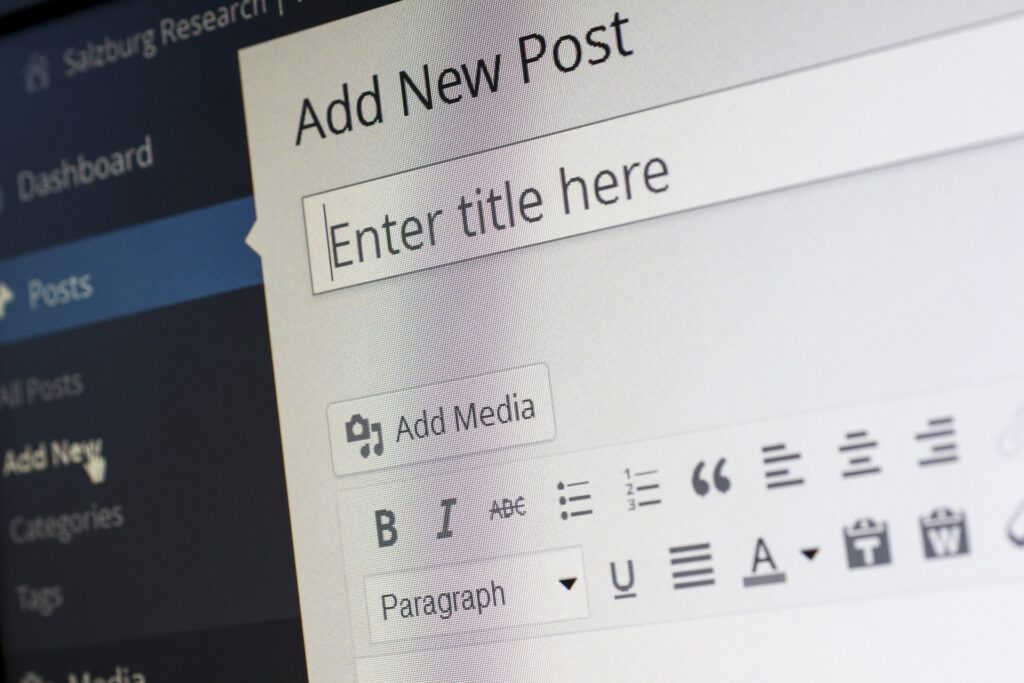
How to write a blog post on wordpress?

2. Write your blog post

Once you have a plan for your blog post, it’s time to start writing. Begin with a catchy headline that will capture your readers’ attention and make them want to read more. Keep your sentences and paragraphs concise and to the point, and break up your text with headings and subheadings to make it easy to read.

Use keywords naturally throughout your post, without overstuffing them. Make use of bullet points, numbered lists, and images to make your content more engaging, easy to read, and visually appealing.

Above all, focus on providing value to your readers. Your content should be informative, well-researched, and provide practical advice or solutions to the challenges your readers may face.

Lastly, always proofread your work to ensure that it’s free of spelling and grammatical errors.

Click Here: WordPress Website Designing

3. Optimize your blog post for search engines

Optimize your blog post for search engines Search Engine Optimization (SEO) refers to optimizing content for search engines so they can understand the context and help to place it within the correct rankings. Here’s how to optimize your blog post for search engines:

Use keywords

Use the right keywords in your blog post to optimize it for search engines. These are the words that people would use to search for content that is similar to your blog post. Ensure that they look natural and do not feel like they’re unnecessarily used.

Add Internal and External Links

Incorporate internal and external links to your blog post that redirect to relevant pages. Internal links point to pages within your website, while external links point to high-quality content outside your website. Incorporating relevant links positively affects search engine ranking.

Read Also: What is Search Engine Optimization (SEO) in Digital Marketing?

Use meta descriptions and tags

Include well-written meta descriptions and tags for your post that give more insight into the content, without giving the full details. This offers context and valuable information to the reader. Use specific tags for every post, ensuring that relevant keywords are targeted.

Use the Yoast SEO plugin to optimize your blog post

Yoast SEO a plugin is an excellent tool for ensuring that your content is optimized for search engines. The plugin analyses the content and offers recommendations on how to improve it further. For instance, it analyses the readability score, metadata, and keyword optimization.

How to write a blog post?

Proper formatting for search engine optimization

When formatting your post, ensure that the meta titles and descriptions of the post-match the content inside the blog post. Proper formatting includes the use of H1, H2, and H3 headings and subheadings, proper keyword usage, alt tags for images, and careful formatting of URLs.

Read Also: Types of Heading and Subheadings with Example

4. Publish your blog post

Once your blog post is written and optimized for search engines, it’s time to publish it on your WordPress website. Double-check that everything looks good and is error-free, then hit the publish button.

After your blog post is published, promote it on your social media channels or via email marketing to get more exposure and drive traffic to your website.

You can also checkout this digital marketing institute to learn digital marketing course by enrolling in our course Or Contact Digital Bikana on +91-8949483728

Conclusion

Writing blog posts on a WordPress website requires planning, creativity, and attention to detail. By following the steps outlined in this article, you can create quality content that engages your readers, drives traffic to your website, and builds your brand’s authority in your industry or niche.

To recap, it all starts with planning your content, choosing topics that are interesting and relevant to your readers, and creating a clear outline. Then, it’s all about writing content that is concise, informative, and well-structured.

Once you have a draft of your blog post, it’s important to optimize it for search engines by including the right keywords, metadata, and formatting. And finally, don’t forget to promote your blog post across different channels to get more visibility and increase traffic to your website.

With the right approach and effort, your blog on WordPress can become a valuable source of information and connection with your target audience and a great way to build your brand online. Now, I hope you have understood how to write a blog post on wordpress website.

How to install WordPress using cPanel in GoDaddy?

In this article we are going to understand how to install wordpress on domain name using Cpanel in Godaddy. WordPress is one of the most popular and powerful platforms for creating websites and blogs. It offers a lot of features, flexibility, and customization options for users of all levels. If you want to use WordPress for your website, you need to install it on your domain name using your hosting account.

How to install WordPress on Domain Name using cPanel in GoDaddy?

There are two ways to install WordPress on your domain name using cPanel in GoDaddy: the automatic way and the manual way. The automatic way is easier and faster, but the manual way gives you more control and customization options. In this article, we will show you both methods and help you choose the best one for your needs.

How to install WordPress on Domain Name using installer of cPanel in GoDaddy?

Most hosting services, including GoDaddy, make the WordPress installer available through your cPanel dashboard. These are the steps to an easy install:

1. Log in to cPanel

You can access cPanel directly from your GoDaddy account by clicking on the Manage button next to your hosting plan. Alternatively, you can go to your browser and type in https://yourdomain.com/cpanel (replace yourdomain.com with your actual domain name) and enter your cPanel username and password.

2. Launch the installer

In the cPanel dashboard, scroll down to the Websites section and click on Install Application. You will see a list of applications that you can install on your website. Find a WordPress blog and click on and install this application.

Read Also: How to buy a Domain Name for Free using Godaddy?

3. Confirm the installation

You will see a form with some details about the installation. You can leave most of them as default, but make sure to check the following fields:

Location

Choose the domain name where you want to install WordPress. If you want to install it on a subdomain or a subdirectory, you can specify that here as well.

Version

Choose the latest version of WordPress available.

Administrator Username

Choose a username for your WordPress admin account. Do not use admin as it is too easy to guess and hack.

Administrator Password

Choose a strong password for your WordPress admin account. You can use the password generator tool to create a secure password.

Administrator Email

Enter a valid email address where you can receive notifications and updates from WordPress.

Website Title

Enter a title for your website. You can change it later in WordPress settings.

Website Tagline

Enter a short description or slogan for your website. You can change it later in WordPress settings.

How to install WordPress on Domain Name using cPanel in GoDaddy

4. Adjust default settings

You can also customize some advanced settings for your WordPress installation, such as database name, table prefix, automatic updates, backups, etc. You can find these settings by clicking on Show advanced settings at the bottom of the form. If you are not sure what to do with these settings, you can leave them as default or consult with an expert.

5. Complete the installation

Once you are done with all the settings, click on Install at the bottom of the form. The installer will start installing WordPress on your domain name and show you a progress bar. When the installation is complete, you will see a confirmation message with a link to your WordPress dashboard and website.

You can also checkout this digital marketing institute to learn digital marketing course by enrolling in our course Or Contact Digital Bikana on +91-8949483728

How to install wordpress manually on any web hosting?

The manual way: using FTP and MySQL

If you prefer to have more control over your WordPress installation or if you encounter any issues with the automatic installer, you can also install WordPress manually using FTP and MySQL. These are the steps to follow:

1. Download WordPress

Go to https://wordpress.org/download/ and download the latest version of WordPress as a zip file to your computer.

2. Unzip WordPress

Extract the contents of the zip file to a folder on your computer. You will see a folder called WordPress with several files and subfolders inside it.

3. Create a database

Log in to cPanel and go to the Databases section. Click on MySQL Database Wizard and follow the steps to create a new database and a new user for it. Make sure to note down the database name, username, and password as you will need them later.

4. Upload WordPress files

Log in to cPanel and go to the Files section. Click on File Manager and navigate to the folder where you want to install WordPress (usually public HTML). Click on Upload and select all the files and folders from the WordPress folder on your computer. Wait until all the files are uploaded successfully.

Read Also: How to add a Subdomain name in Godaddy using cPanel?

5. Run the installation script

Go to your browser and type in https://yourdomain.com/wp-admin/install.php (replace yourdomain.com with your actual domain name). You will see a welcome screen asking you to select your language and confirm that you have a database ready. Click on Let’s Go to proceed.

How to install wordpress manually on any web hosting

6. Enter database information

On the next screen, you will see a form where you need to enter the database name, username, password, host, and prefix that you created in Step 3. Make sure to enter them correctly and click on Submit.

7. Run the installation

If your database information is correct, you will see a message saying that WordPress can communicate with your database. Click on Run the installation to continue.

8. Fill in the site information

On the final screen, you will see a form where you need to enter some details about your site and your admin account. These are similar to the ones you entered in the automatic installation, but with some differences:

Site Title

Enter a title for your website. You can change it later in WordPress settings.

Username

Choose a username for your WordPress admin account. Do not use admin as it is too easy to guess and hack.

Password

Choose a strong password for your WordPress admin account. You can use the password generator tool to create a secure password.

Your Email

Enter a valid email address where you can receive notifications and updates from WordPress.

Search Engine Visibility

Check this box if you want to discourage search engines from indexing your site. This is useful if you are still working on your site and don’t want it to be public yet. You can change this later in WordPress settings.

9. Install WordPress

Once you are done with all the details, click on Install WordPress at the bottom of the form. WordPress will start installing on your domain name and show you a success message with a link to your WordPress dashboard and website.

Congratulations! You have successfully installed WordPress on your domain name using cPanel in GoDaddy.

What is the difference between Website and Webpage?

In this article we are going to understand what is the difference between Website and Webpage with example? In the digital age, it is imperative to have a strong online presence. Whether you are a small business owner or an individual, having a website or a webpage can be essential for promoting your brand, showcasing your products, or sharing your ideas with the world. However, before you start creating your online platform, it is important to understand the difference between a website and a webpage.

At a basic level, a website is a collection of web pages that are interlinked and share a common domain name. In other words, a website is a group of related web pages that can be accessed through a single URL (Uniform Resource Locator). A webpage, on the other hand, is a single document or file that is displayed in a web browser. In simple terms, a webpage is a single element of a website.

To understand the difference between a website and a webpage better, it is important to look at each of these terms in more detail.

What is a Website?

A website is a collection of web pages that are interconnected and share a common domain name. Websites can range from simple, single-page sites to complex, multi-page sites with hundreds or even thousands of pages. The Websites are typically used to promote a business, organization, or individual and can contain a variety of content, such as text, images, videos, and animations.

Websites can be created for a variety of purposes, such as e-commerce, blogging, news, social networking, entertainment, and more. They are hosted on a server and can be accessed through a web browser like Google Chrome, Mozilla Firefox, or Safari.

Click Here: What is Search Engine Optimization (SEO) in Digital Marketing?

What is a Webpage?

A webpage, on the other hand, is a single document or file that is displayed in a web browser. A webpage can contain a variety of content, such as text, images, videos, and links, and is typically designed to provide information to the user or allow the user to take a specific action.

Webpages can be created using a variety of programming languages, such as HTML (Hypertext Markup Language), CSS (Cascading Style Sheets), and JavaScript. They can be accessed through a web browser by entering the URL of the page in the address bar or by clicking on a link that points to the page.

What is the difference between Website and Webpage

What is the difference between Website and Webpage?

The Main Differences between Website and Webpage are listed below:

1. Structure and content

  • A website is a collection of related web pages that are organized in a hierarchical structure. The homepage is usually the starting point of a website, and from there, the user can navigate to other pages on the site. A website can contain a variety of content, such as text, images, videos, and animations.
  • On the other hand, a webpage is a single document or file that is displayed in a web browser. It is usually designed to provide specific information or allow the user to take a specific action.

2. Purpose

  • Websites are typically created for a specific purpose, such as promoting a business, organization, or individual, providing e-commerce services, or sharing news and information. Websites can have a variety of goals, such as increasing brand awareness, generating leads, and driving sales.
  • Webpages, on the other hand, are designed to provide information to the user or allow the user to take a specific action, such as filling out a form, making a purchase, or signing up for a newsletter.

3. URL

  • A website has a unique domain name that is used to access all of the web pages within the site. For example, the domain name for Google is www.google.com, and all of the pages within the site can be accessed by appending a specific path to the domain name.
  • A webpage, on the other hand, has a unique URL that is used to access that specific page. The URL of a webpage can be found in the address bar of the web browser.
What is the difference between Website and Webpage with example in Hindi

4. Navigation

  • Websites typically have a navigation menu or bar that allows users to easily move from one page to another within the site. This menu or bar is usually located at the top or side of the website and may be present on every page within the site.
  • Webpages, on the other hand, do not necessarily have a navigation menu or bar. They may have links within the content that allow the user to move to related pages, but there is no consistent navigation structure across webpages.

5. Size

  • Websites can range in size from small, single-page sites to large, complex sites with hundreds or even thousands of pages. The size of a website depends on the purpose and scope of the site.
  • Webpages, on the other hand, are typically smaller than websites since they are designed to provide specific information or allow the user to take a specific action.

You can also checkout this digital marketing institute to learn digital marketing course by enrolling in our course Or Contact us on +91-8949483728

6. Interactivity

  • Websites can be interactive and allow users to interact with the content in various ways. For example, users may be able to fill out forms, leave comments, or share content on social media.
  • Webpages, on the other hand, may not be interactive and may simply provide information without any user interaction.

What is the difference between Website and Webpage with example in Hindi?

To understand the difference between Website and Webpage with example in Hindi kindly checkout the video below:

Conclusion

While the differences between a website and a webpage are significant, it is important to note that the two are interdependent. A website is made up of webpages, and without webpages, there can be no website. Therefore, it is essential to understand how the two work together to create a cohesive online presence.

Websites are typically designed to be user-friendly, visually appealing, and easy to navigate. They are designed to provide a positive user experience and keep users engaged for as long as possible. A good website should be responsive and compatible with various devices, including desktops, laptops, tablets, and smartphones.

Webpages, on the other hand, are designed to be specific and focused. They should provide the user with the information they are looking for quickly and efficiently. This means that webpages should be well-organized, visually appealing, and easy to read. They should also be optimized for search engines, so that they can be easily found by users who are searching for specific information.

One of the key factors in creating a successful website is ensuring that the webpages are interconnected and organized in a logical manner. This means that users should be able to easily navigate from one page to another without getting lost or confused. The navigation menu or bar should be clearly visible and easy to use, and it should provide users with a clear understanding of the structure of the website.

You can also checkout this digital marketing institute to learn digital marketing course by enrolling in our course Or Contact us on +91-8949483728

Another important factor in creating a successful website is ensuring that the content on each webpage is high-quality and relevant. The content should be well-written, engaging, and informative, and it should be optimized for search engines. This means that the content should include relevant keywords and phrases that users are likely to search for when looking for information on a particular topic.

In addition to these factors, websites and webpages should also be optimized for speed and performance. This means that the site should load quickly and smoothly, without any delays or errors. Users are likely to leave a website if it takes too long to load, so it is essential to ensure that the site is optimized for speed.

Another factor to consider when creating a website is security. Websites can be vulnerable to various forms of cyber-attacks, such as hacking, malware, and phishing. It is therefore essential to ensure that the website is secure and protected from these threats. This can be done through various means, such as using strong passwords, regularly updating software and plugins, and using SSL certificates to encrypt data. In conclusion, the main difference between a website and a webpage is that a website is a collection of related web pages that are interlinked and share a common domain name, while a webpage is a single document or file that is displayed in a web browser.

Read Also: How to create a Facebook Page?

Websites are typically larger and more complex than webpages and are designed to achieve specific goals, such as promoting a business or organization. Webpages, on the other hand, are typically smaller and provide specific information or allow the user to take a specific action. Understanding the difference between these two terms is essential for anyone looking to establish an online presence and create a digital platform.While the differences between a website and a webpage are significant, it is essential to understand how the two work together to create a cohesive online presence.

Websites are made up of webpages, and without webpages, there can be no website. Therefore, it is important to ensure that both the website and the webpages are well-designed, user-friendly, and optimized for search engines. This will help to ensure that the site is engaging, informative, and easy to navigate, and that it provides users with a positive experience.